Quickstart
We will now create a quick render of Impossible Geometry, just follow these steps. Be sure to have the addon installed (if not, check the installation guide)
-
Start a new scene in Blender.
-
Delete everything on the scene (yes, even the camera and the point lamp).
-
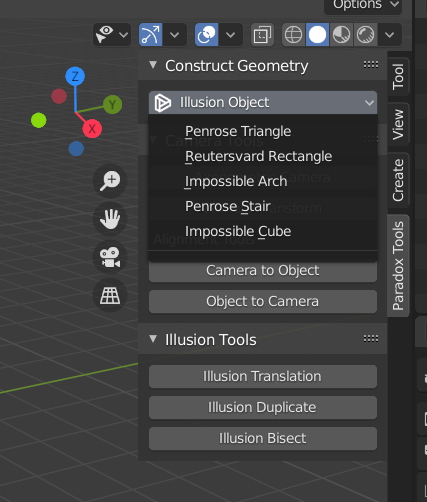
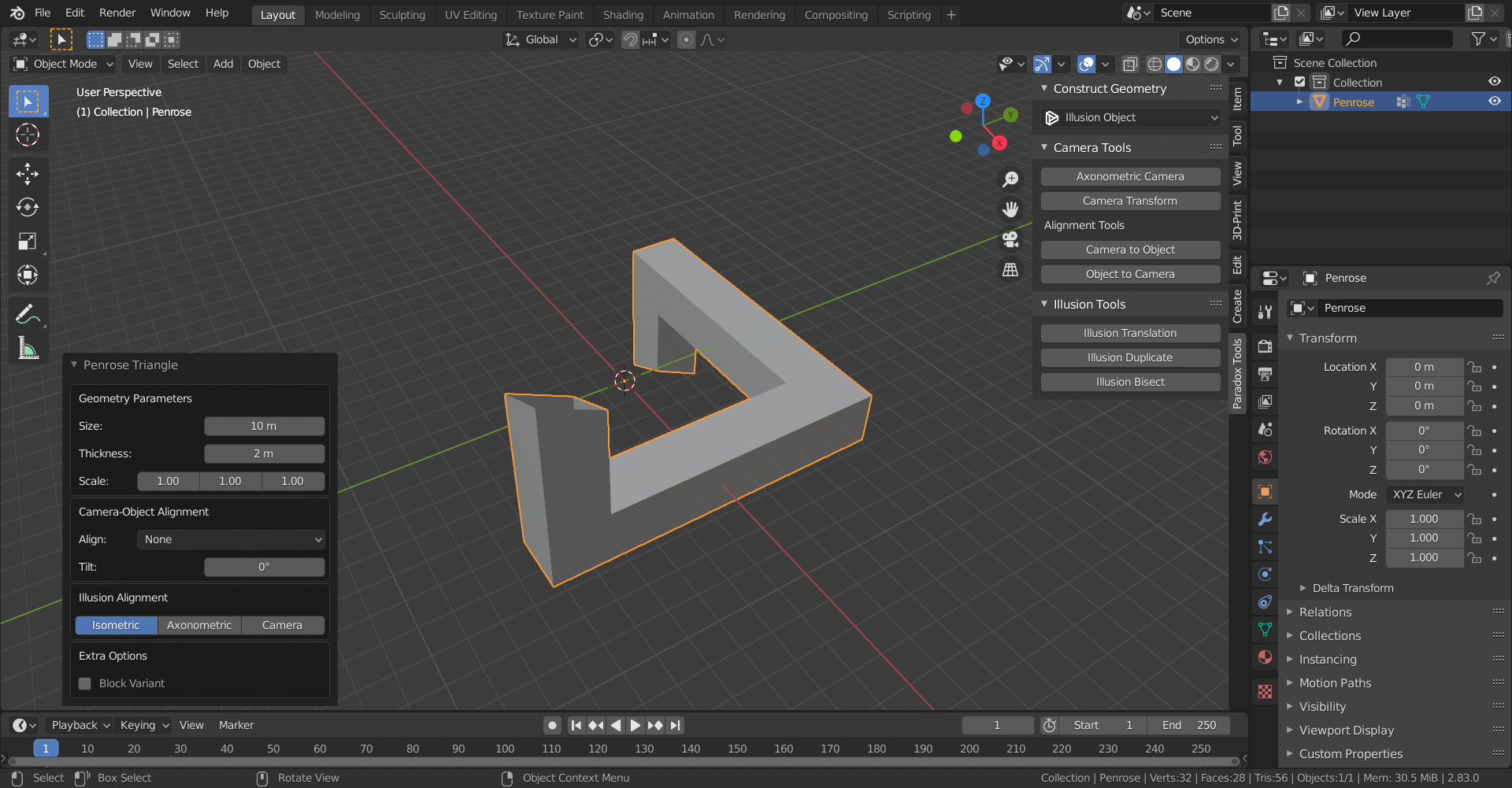
Go to the panel Paradox Tools -> Construct Geometry, and pick the Penrose Triangle from the Illusion Object drop down menu. You can adjust the Geometry Parameters in the left panel if you wish to vary the size and thickness of the object.
-
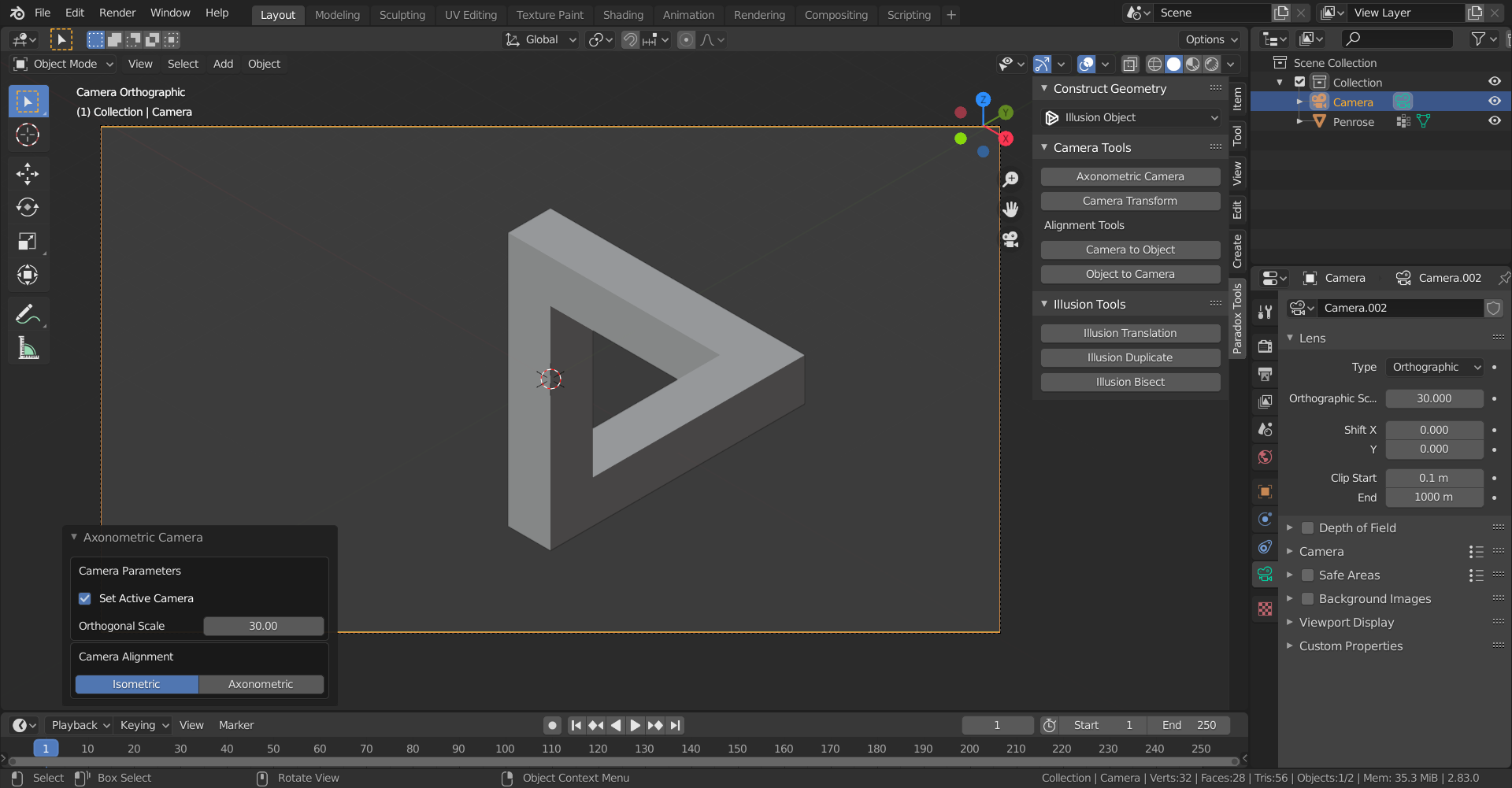
Go to the panel Paradox Tools -> Camera Tools, and click on Axonometric Camera. On the operator options, make sure that the camera alignment is set to Isometric, and adjust the Orthogonal scale to control the size of the field of view.
-
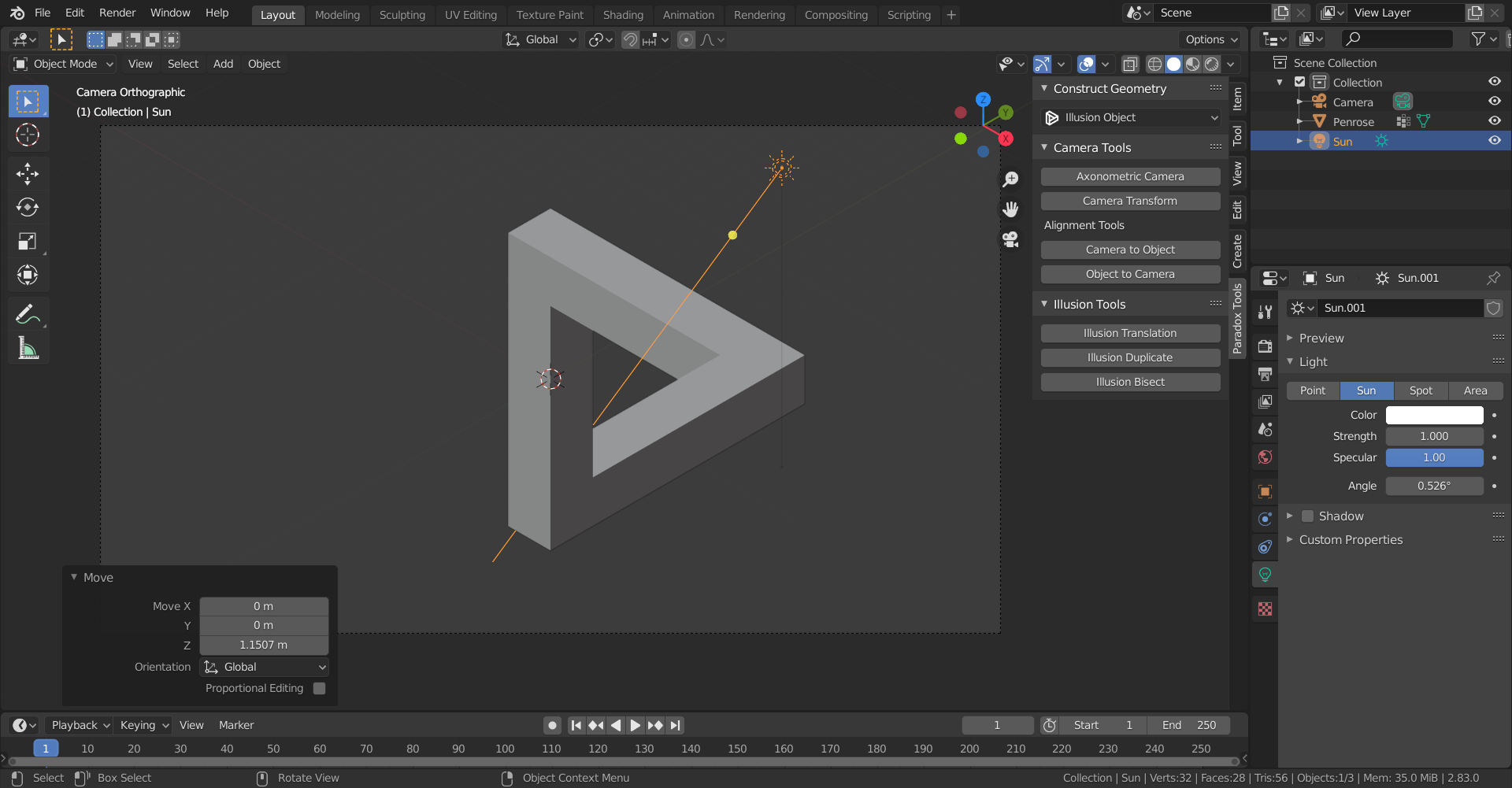
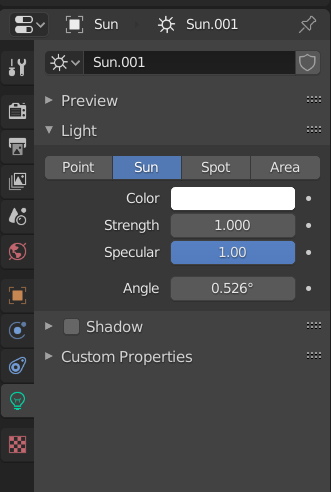
Add a sun lamp, and disable the Shadows option in Lamp Properties. You can add multiple sun lamps if you wish.
-
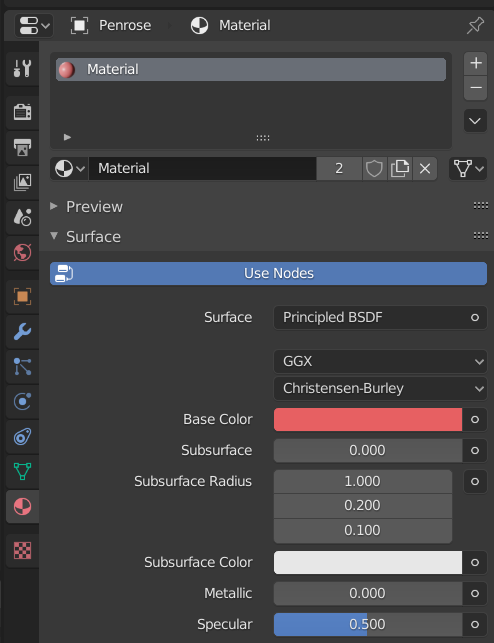
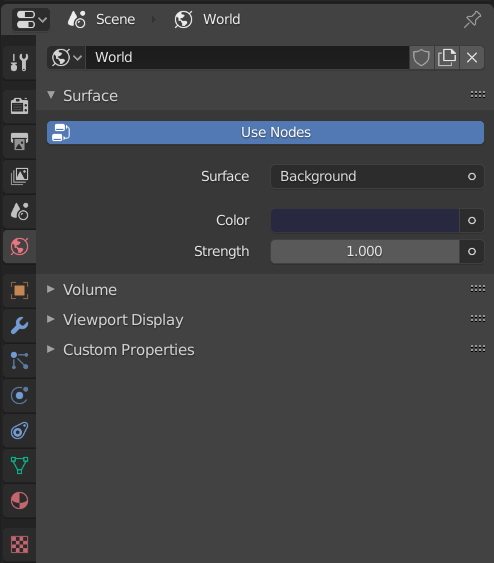
Add a Principled Shader to the Penrose triangle for the penrose triangle material, and pick a background color.
-
Use the Eevee Engine and hit Render.
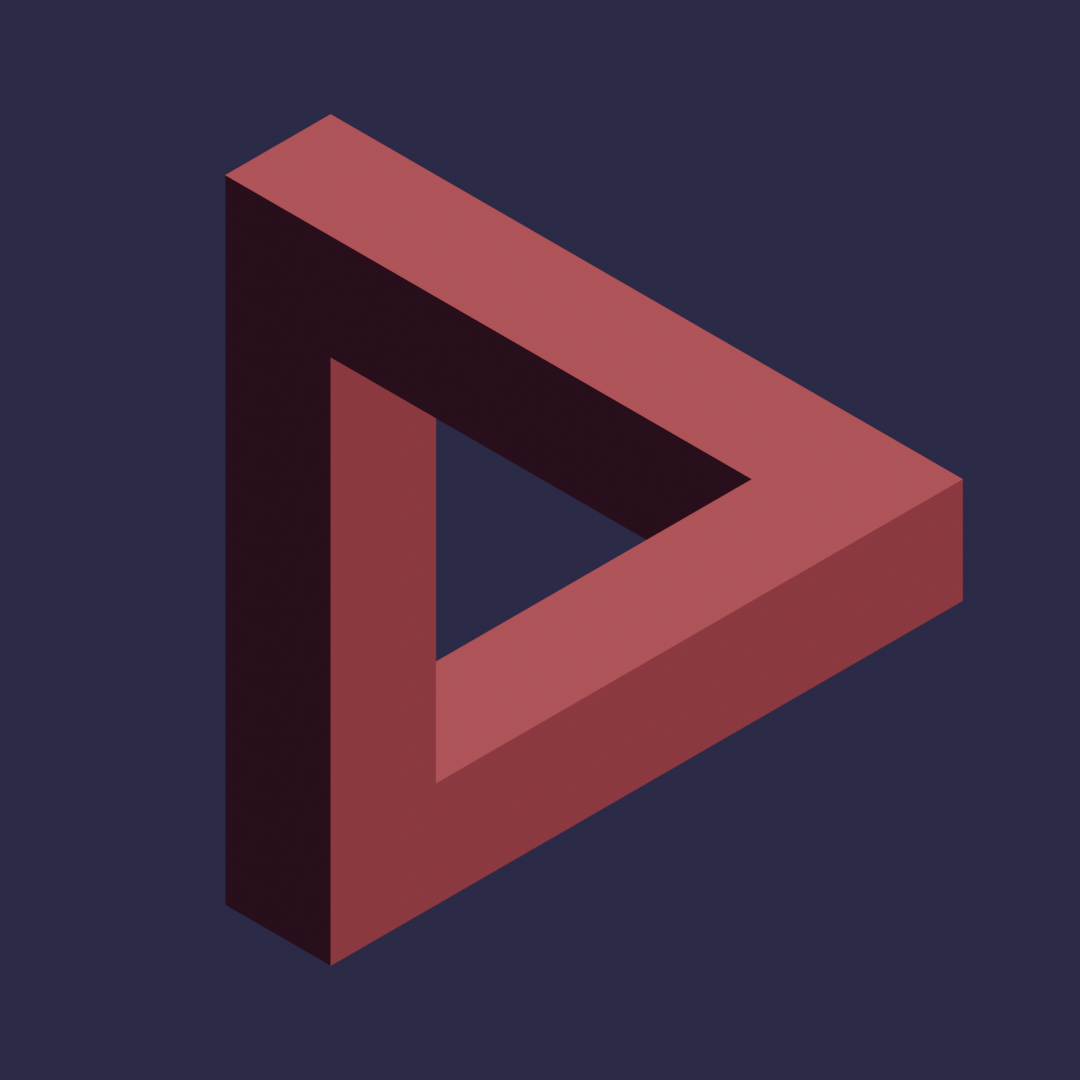
From this point onward you can use regular modeling techniques to build upon your optical illusion.
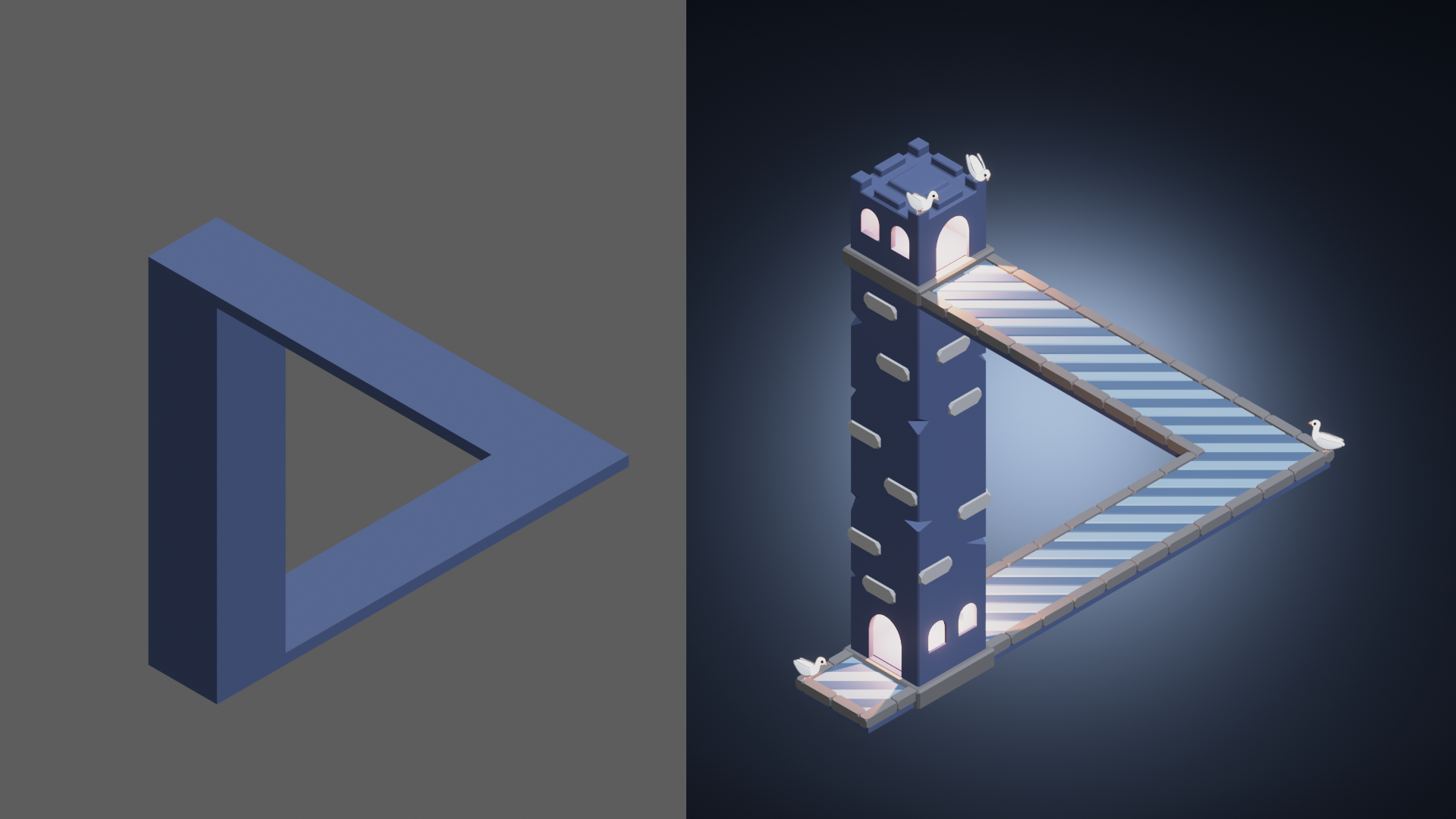
Check the rest of this wiki to learn more techniques and tools to work with impossible geometry!!