A customizable, privacy-focused desktop environment in your browser for quick access to Google services.
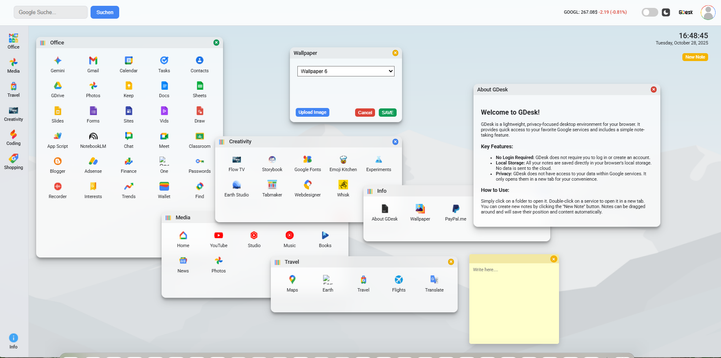
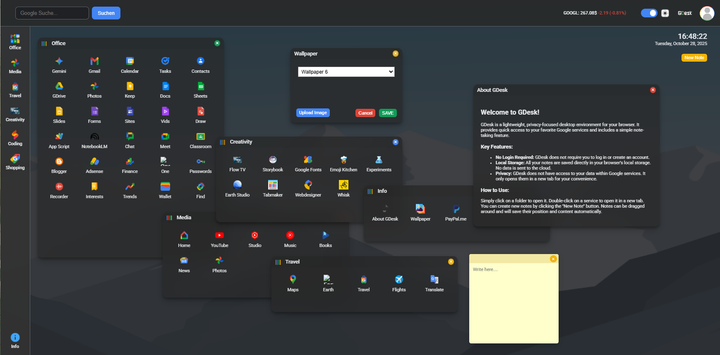
GDesk is a lightweight, browser-based desktop interface designed to provide an organized and efficient way to access your favorite Google services. It runs entirely on the client-side, using plain HTML, CSS, and JavaScript. With a focus on privacy, GDesk requires no user accounts or logins, and all personal settings are stored locally in your browser.
- 🗂️ Organized App Launcher: Access dozens of Google services, neatly organized into folders like "Office," "Media," and "Creativity."
- 🖥️ Desktop Interface: A familiar desktop experience with draggable windows for each folder. The interface is clean, responsive, and intuitive.
- 📝 Sticky Notes: Create digital sticky notes to jot down quick thoughts. Notes are draggable, and their content and position are automatically saved to your browser's local storage.
- 🎨 Customizable Wallpaper: Personalize your desktop!
- Choose from 7 pre-defined, built-in wallpapers.
- Upload your own image to use as a custom background.
- Your wallpaper choice is saved for your next visit.
- 🌗 Dark & Light Mode: Easily switch between a light and a dark theme using the toggle in the header. Your preference is automatically saved.
- 🔒 Privacy First: GDesk requires no login. All your data, including notes and wallpaper preferences, is stored locally in your browser's
localStorage. The application does not track your activity or access your Google account data. - 📈 Live Stock Ticker: Keep an eye on the Google (GOOGL) stock price with a live ticker in the header.
- 🌐 Quick Google Search: A convenient search bar is integrated into the header for fast Google searches.
- Open Folders: Click on any folder icon on the left-hand bar to open its corresponding window.
- Launch Services: Inside a window, double-click on a service icon (e.g., Gmail, Docs, YouTube) to open it in a new, neatly sized popup window.
- Manage Windows: Click and drag the header of any open window to move it around the desktop. Click the colored circle in the top-right corner to close it.
- Create Notes: Click the "New Note" button below the date and time. A new sticky note will appear, which you can drag around and type into. Everything is saved automatically.
- Change Theme: Use the toggle switch in the header to switch between light and dark mode.
- Change Wallpaper:
- Open the "Info" folder.
- Double-click the "Wallpaper" icon.
- In the new window, select a pre-defined wallpaper from the dropdown or click "Upload Image" to choose your own.
- Click "SAVE" to apply and save your choice.
Since this is a pure front-end project, there is no installation required.
- Clone the repository or download the files.
- Open the
index.htmlfile in your favorite web browser.
- HTML5
- CSS3
- JavaScript (ES6+)