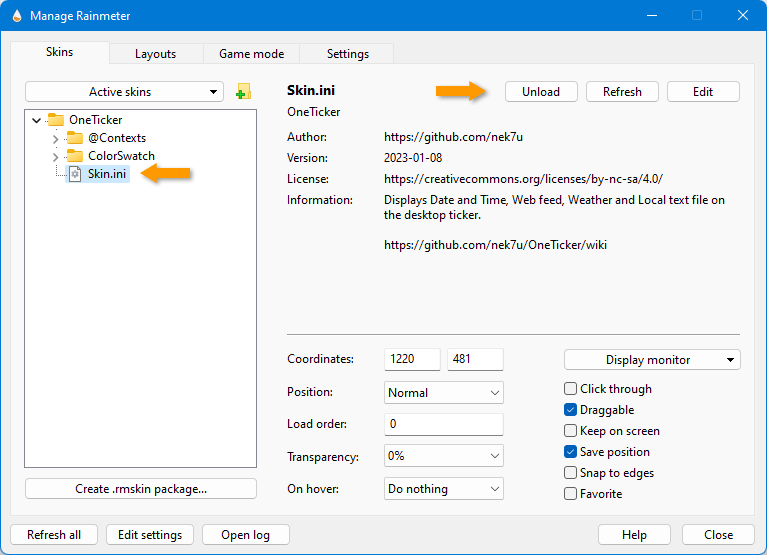
1. Getting started



- Microsoft Windows 10 or greater
- Rainmeter 4.5.10.3597 or greater.
- Download the latest OneTicker.rmskin
- Double click on the
OneTicker.rmskinand launch the skin installer - Click on the Install button
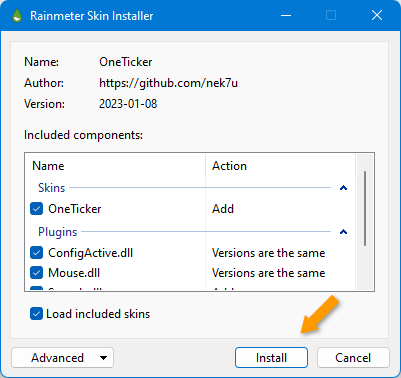
- Please wait a moment
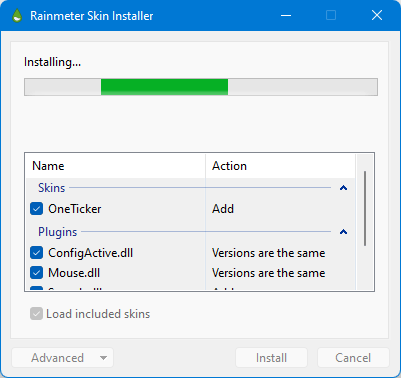
- OneTicker will be appeared on the desktop.

💡 The default location of the skin installed
C:\Users\%UserName%\Documents\Rainmeter\Skins\OneTicker

- Left click on the Rainmeter
 icon on the notification area to open Manage window
 - Select
Skinstab and browse to OneTicker > Skin.ini and click on Load button to load the skin
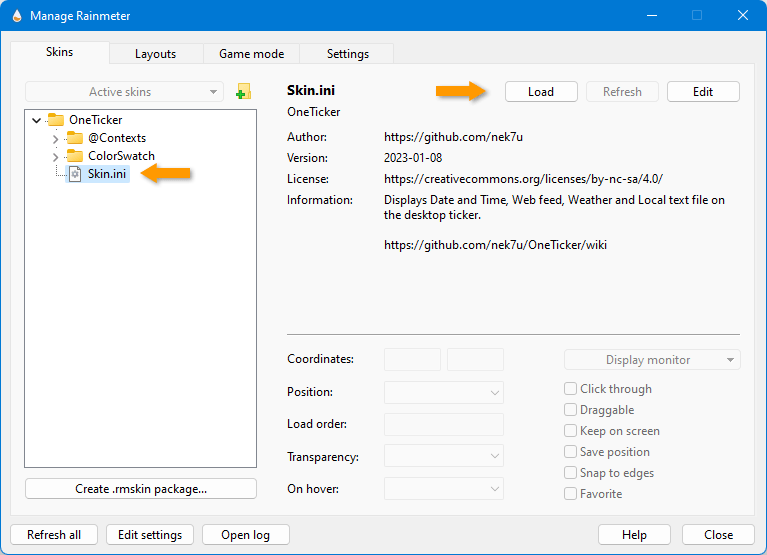
- Select
Skinstab and browse to OneTicker > Skin.ini and click on Unoad button to unload the skin